 Darb
DarbBilling — Darb Subscription Invoices
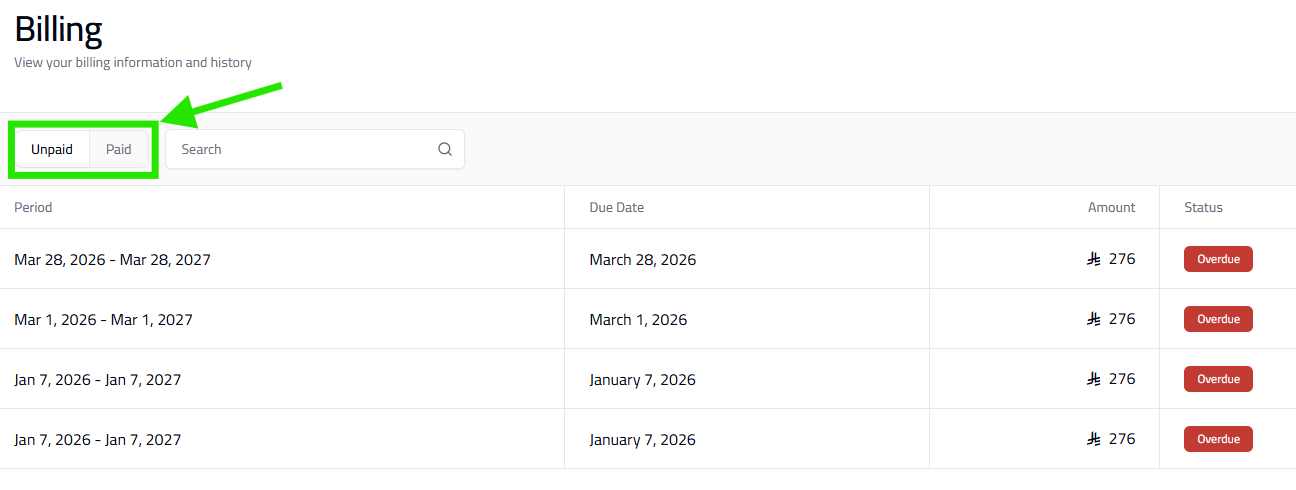
View, track, and manage all your Darb invoices in one place.
Note: Billing relates to Darb products and services (subscriptions, plans, or platform fees) — not transactions made using Darb cards.
What You Can See
- Billing Period — the time range covered.
- Due Date — when payment is required.
- Amount — total invoice value.
- Status — Paid, Unpaid, or Overdue.
What You Can Do
- Switch between Unpaid and Paid tabs.
- Search invoices using the search bar.
- Track Overdue payments first to avoid service interruptions.
How to Use It
- Go to Billing.
- Review your Unpaid invoices.
- Check due dates and amounts.
- Ensure your wallet has enough balance for payment.
Payments are automatically deducted from your wallet balance. Make sure your wallet has enough funds to avoid overdue invoices.
Note: Prerequisite: complete your billing details in Settings → Billing. Without this, invoices may not be generated or processed correctly.