 Darb
DarbHow to connect Zoho Books to Darb
Step-by-step guide to syncing your Darb transactions to your Zoho Books accounting.
Connect your Zoho Books account to Darb to automatically sync your transactions into your accounting. Follow these steps to set up the integration.
Step 1: Start the integration in your Darb portal
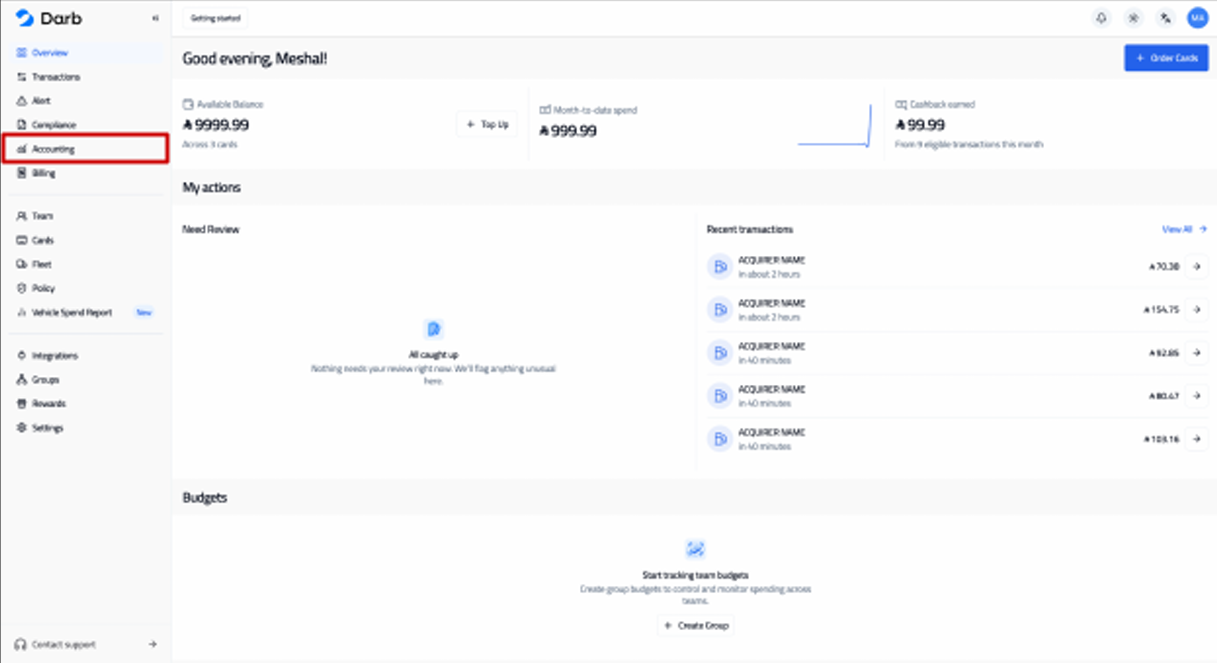
- Log in to your Darb portal at app.darbpay.com/client/dashboard.
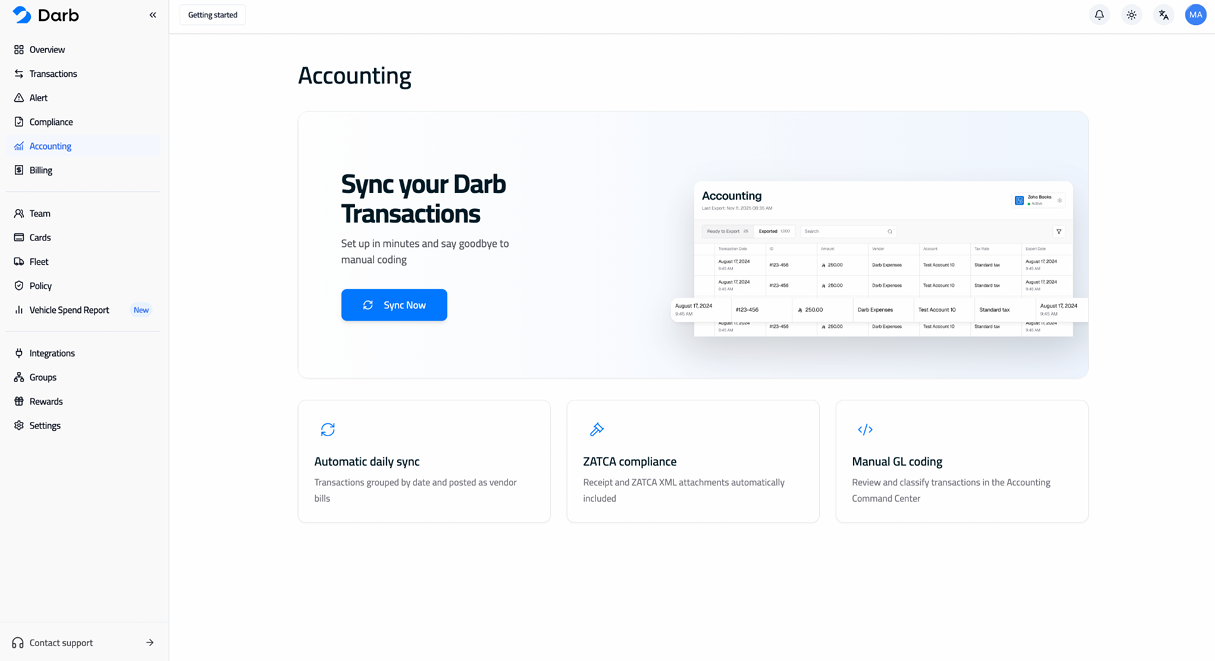
- Click the Accounting section in the sidebar.
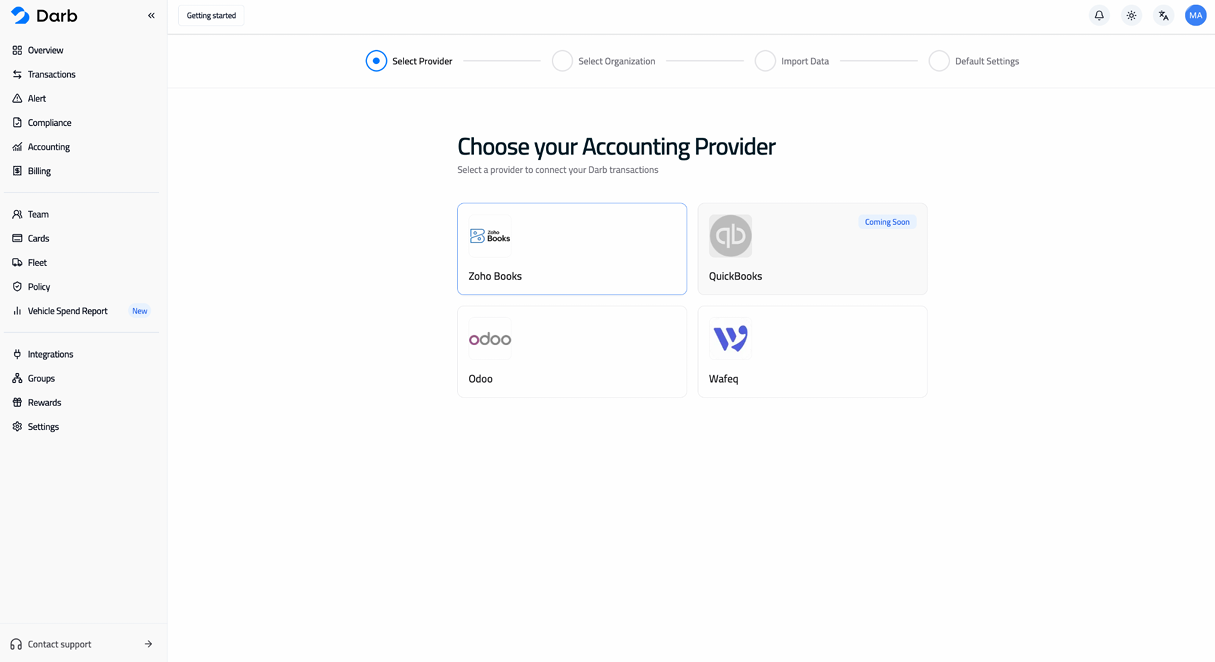
- Press Sync Now.
- Select Zoho Books.
Step 2: Sign in to Zoho and authorize Darb
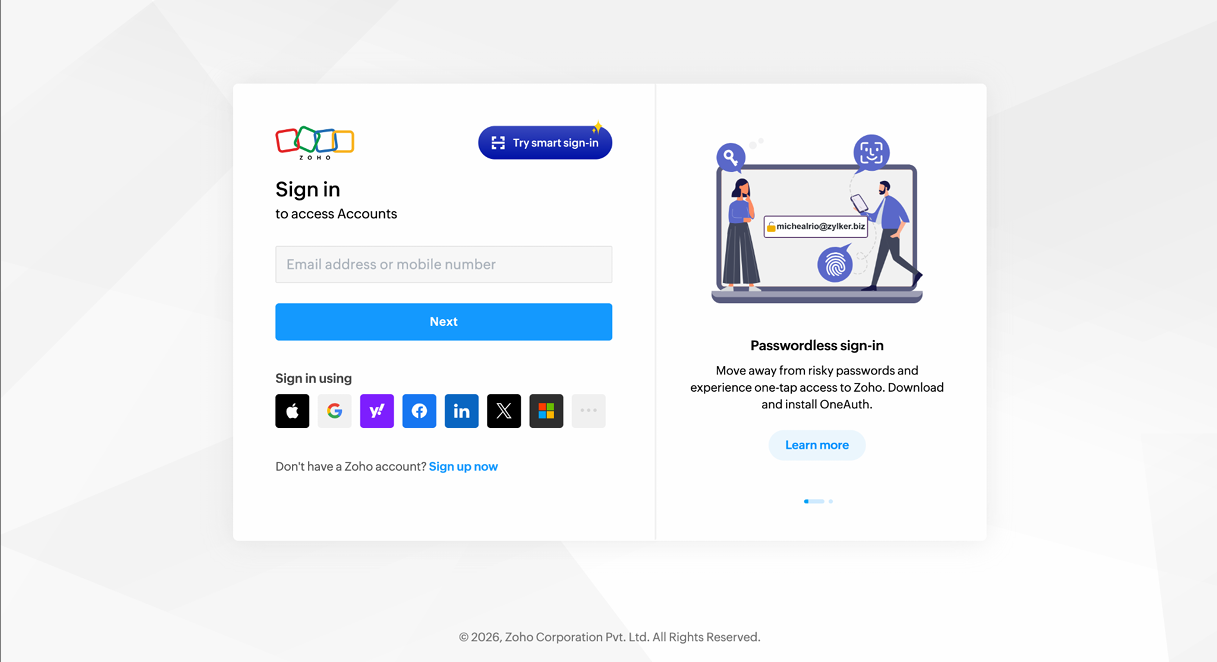
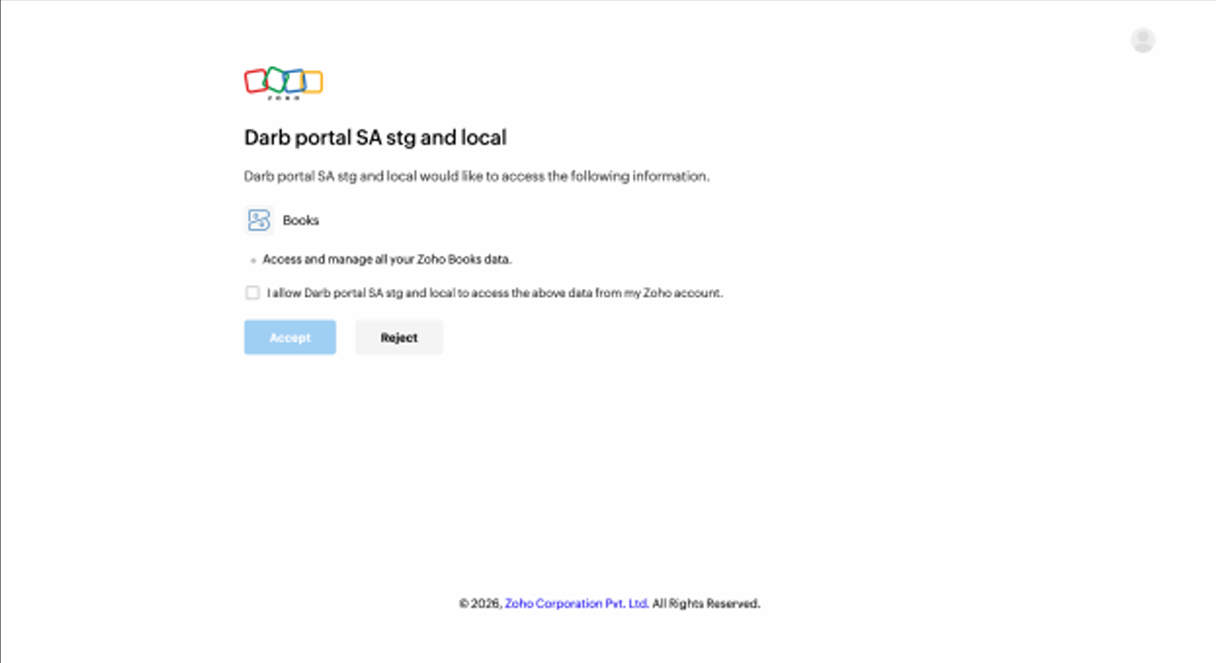
A Zoho login page will appear. Sign in and grant Darb access:
- Enter your Zoho account login information.
- Press "I allow Darb Portal SA stg and local to access the above data from my Zoho account".
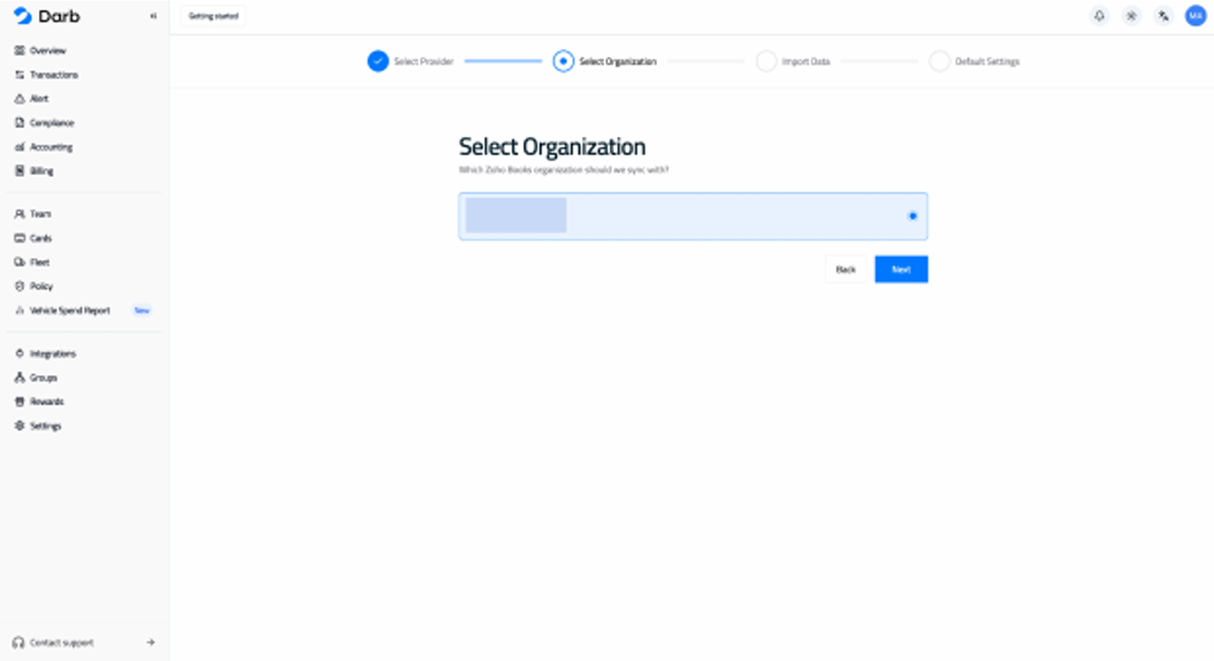
- Select the organization you want to use.
Step 3: Import and sync
- Import your data from Zoho Books.
- You're ready to sync your transactions from Darb to Zoho Books.
Need help?
If you need support, contact us: Email info@darbpay.com — Phone 0114516488 (Sunday–Thursday, 9:00 AM – 5:00 PM, KSA Time).